

rctl command-line tool, register two softphones, and call from one to the other.
What you’ll build
A single Routr server on your machine with:- A Domain named
sip.local. - Two Agents,
1001(John) and1002(Jane), each with its own Credentials. - Two softphones registered to Routr that can call each other.
Prerequisites
- Docker with Docker Compose.
- Node.js and npm, to install
rctl. - Two SIP softphones, for example Zoiper or Telephone. You can run them on the same computer or on two devices on the same network.
- The IP address of the machine that runs Docker, as seen by your softphones (for example
192.168.1.3).
Steps
1
Start Routr
Create a directory named Here’s what each part does:Then follow the logs until the services are up:Look for the following lines. Press
routr and add a file named compose.yaml with the following content. It runs fonoster/routr-one, the all-in-one image that bundles every Routr service and a PostgreSQL database in one container.compose.yaml
EXTERNAL_ADDRStells the EdgePort which address to advertise in SIP messages. Use an address your softphones can reach.- Port
51908is the API Server, whichrctltalks to. Port5060is SIP signaling over UDP and TCP. - The
sharedvolume keeps the database between restarts.
192.168.1.3 with your own IP address.Ctrl+C to stop following the logs; the server keeps running.Routr is running and listening for SIP on port
5060 and for API calls on port 51908.2
Install rctl
Install the Routr command-line tool globally with npm:Check that it’s installed:Every command in this tutorial uses
--insecure because the all-in-one image serves the API without TLS. To secure it, see Secure the server.3
Create a Domain
A Domain groups Agents that can call each other. Create one with the SIP URI Answer the prompts as shown. Leave the access control list set to
sip.local:None.4
Create Credentials for both Agents
Credentials hold the username and password a softphone uses to register. Create the first set:Use Run the command again to create
1001 as the username and 1234 as the password:Jane Doe Credentials with username 1002 and password 1234.5
Create two Agents
An Agent is a SIP endpoint, such as a softphone, that belongs to a Domain. Create John:Select the Run the command again to create Jane Doe with username The output looks similar to this:
sip.local Domain and John’s Credentials. Leave Max Contacts empty for no limit, and keep the other defaults.1002 and Jane Doe Credentials.List the Agents to confirm both exist:You have a Domain and two Agents that can register and call each other.
6
Register the softphones
Add an account for 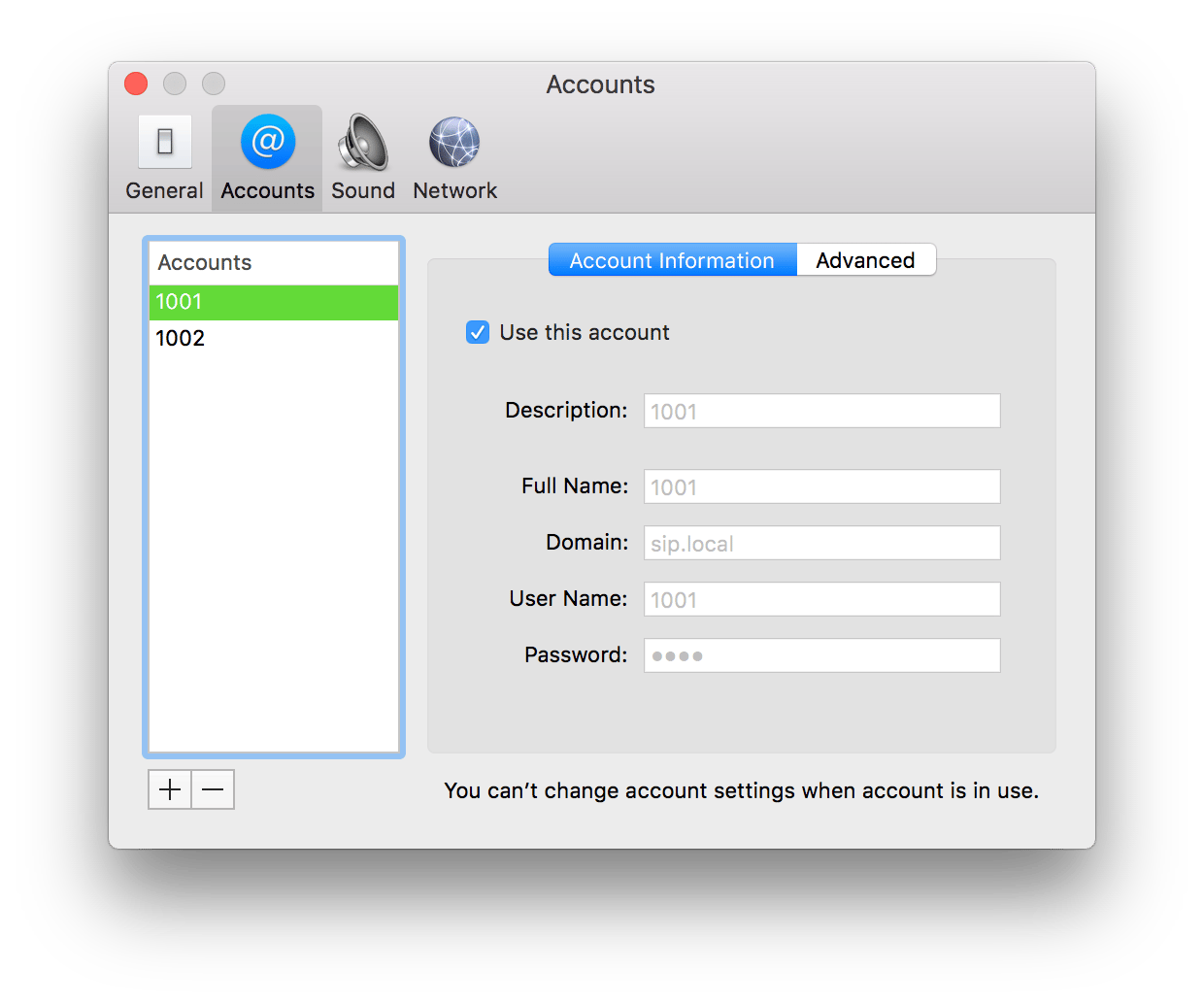
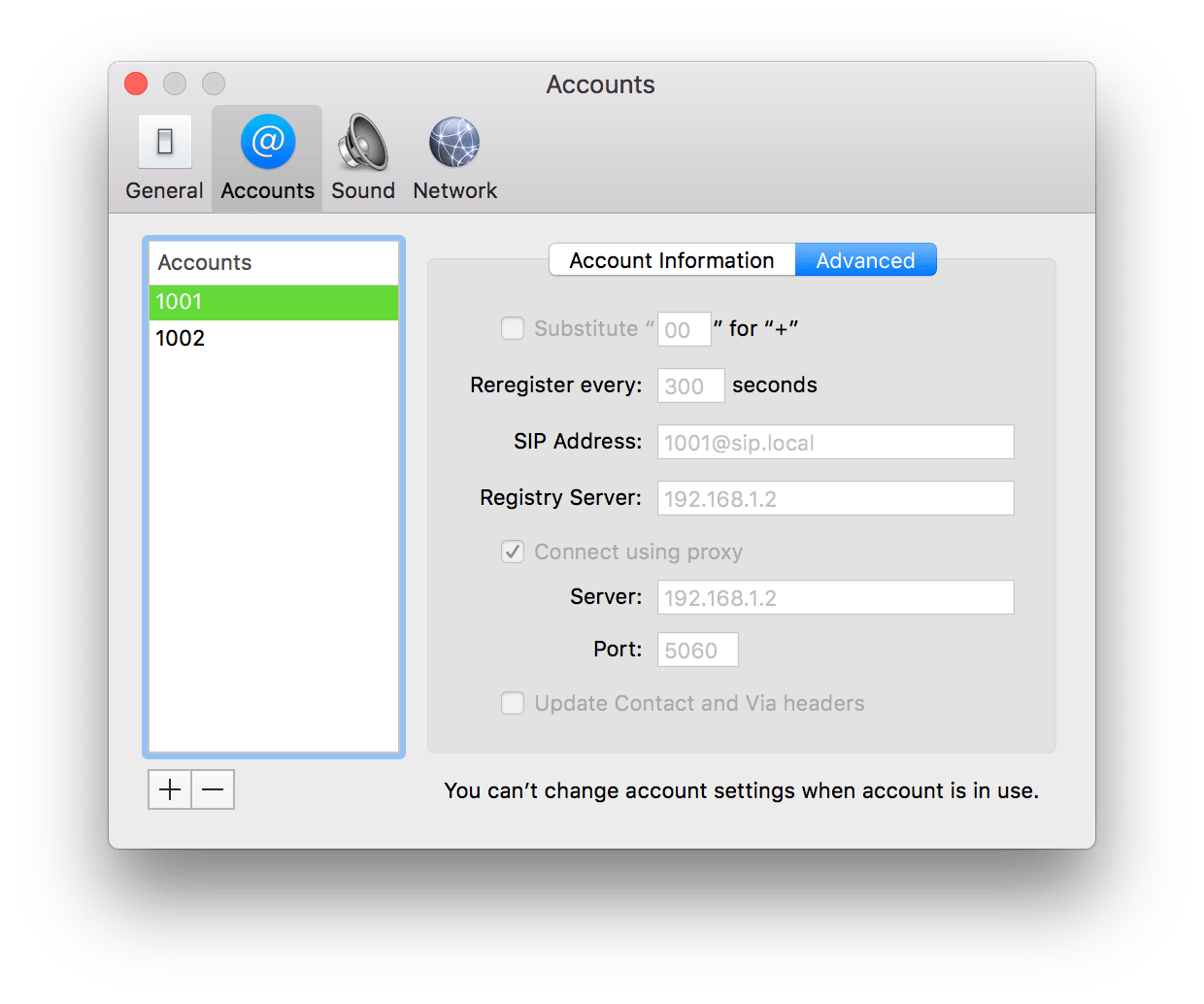
1001 in the first softphone and for 1002 in the second. Use these settings:sip.local doesn’t resolve in DNS, so the softphone must send its requests to Routr through the proxy setting. In Telephone, the account looks like this:Both softphones show the account as registered (or online).
7
Make a call
From John’s softphone (
1001), dial 1002. Jane’s softphone rings. Answer it and talk.To watch the SIP messages as the call happens, open sngrep, which is included in the image:You made an agent-to-agent call through Routr.
Clean up
Stop and remove the container when you’re done. Add-v to also delete the database volume.
Troubleshooting
- The softphone doesn’t register. Check that
DOCKER_HOST_ADDRESSis an address the softphone can reach, and that the softphone’s proxy setting points at it on port5060. - Registration works, but calls drop or don’t ring after a while on UDP. NAT devices close idle UDP mappings quickly. Lower the softphone’s re-register interval, or use TCP. See EdgePort cooperation for why connection-oriented transports are recommended.
rctlcan’t connect. Make sure port51908is published and that you pass--insecure.
Next steps
Set up a home or office
Add a Trunk and a Number so your Agents can call the PSTN.
Manage resources with rctl
Learn the commands for every Connect resource.
Architecture
See what happens inside Routr when a call arrives.
Deploy with Docker
Run Routr with Docker for a longer-lived setup.